Microphone
Connect the microphone to be used to the computer. You can use an external headset or - if available - connect the lecture hall audio system to the laptop. Many laptops also have a built-in microphone, but its use is not recommended as the audio quality is usually poor - especially if the lecturer is away from the computer.
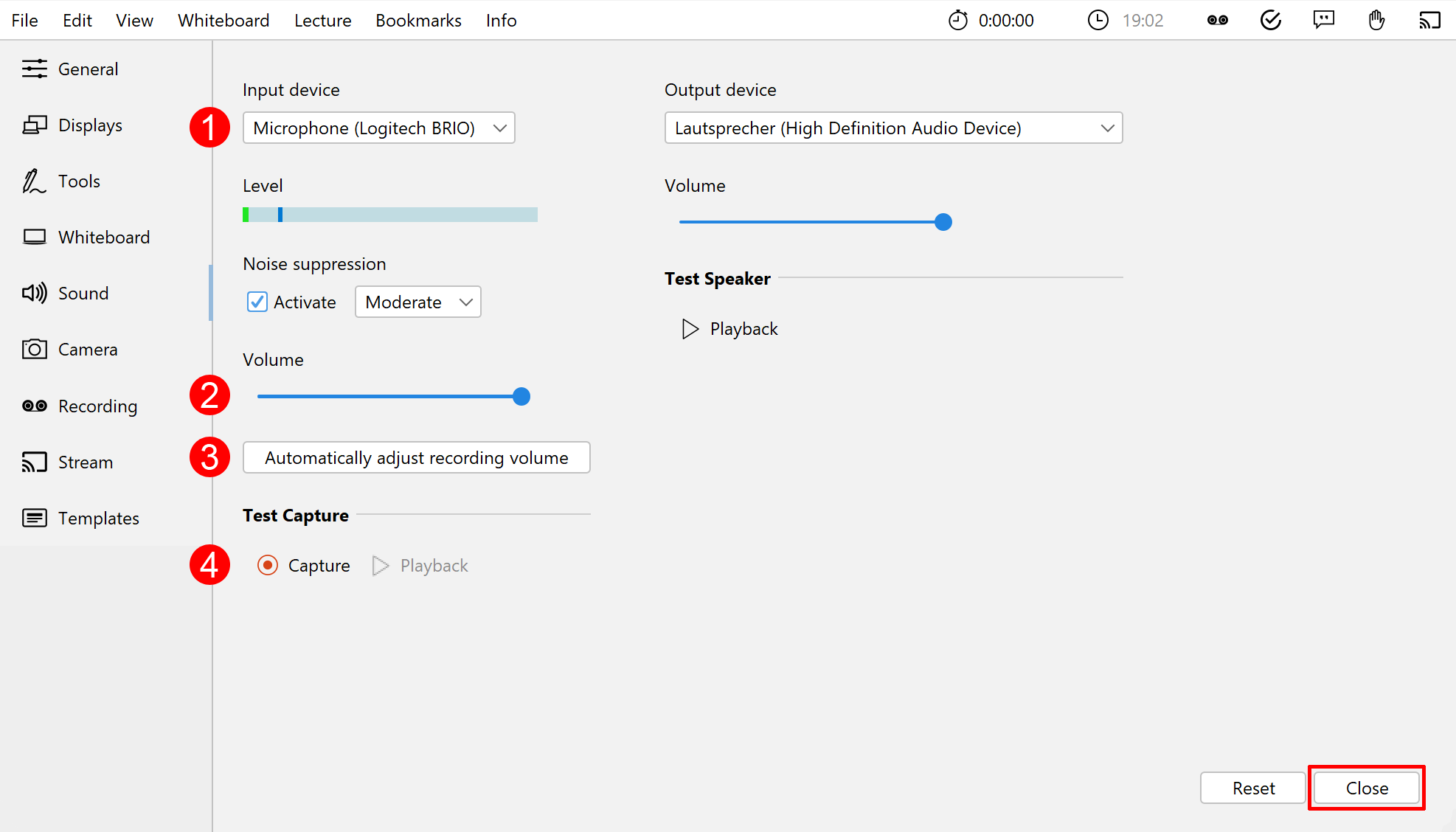
Now set up the desired microphone:
- Open the settings via the menu Edit > Settings.
- Navigate to the Microphone tab.
- Select the appropriate microphone (1).
- You can use the slider (2) to adjust the volume of the microphone.
- Alternatively, you can adjust the recording volume by setting the recording level automatically (3). Click Start in the dialogue and speak into the selected microphone for a while. After you have clicked Done, the microphone volume is set to the maximum level reached.
- Make a short recording (4) and check it for noise, background noises, reverberation, etc.
- Finally, click on the Close button to save the settings.